Wireless CarPlay Retrofit for BMW Interface Upgrade | Leadsign

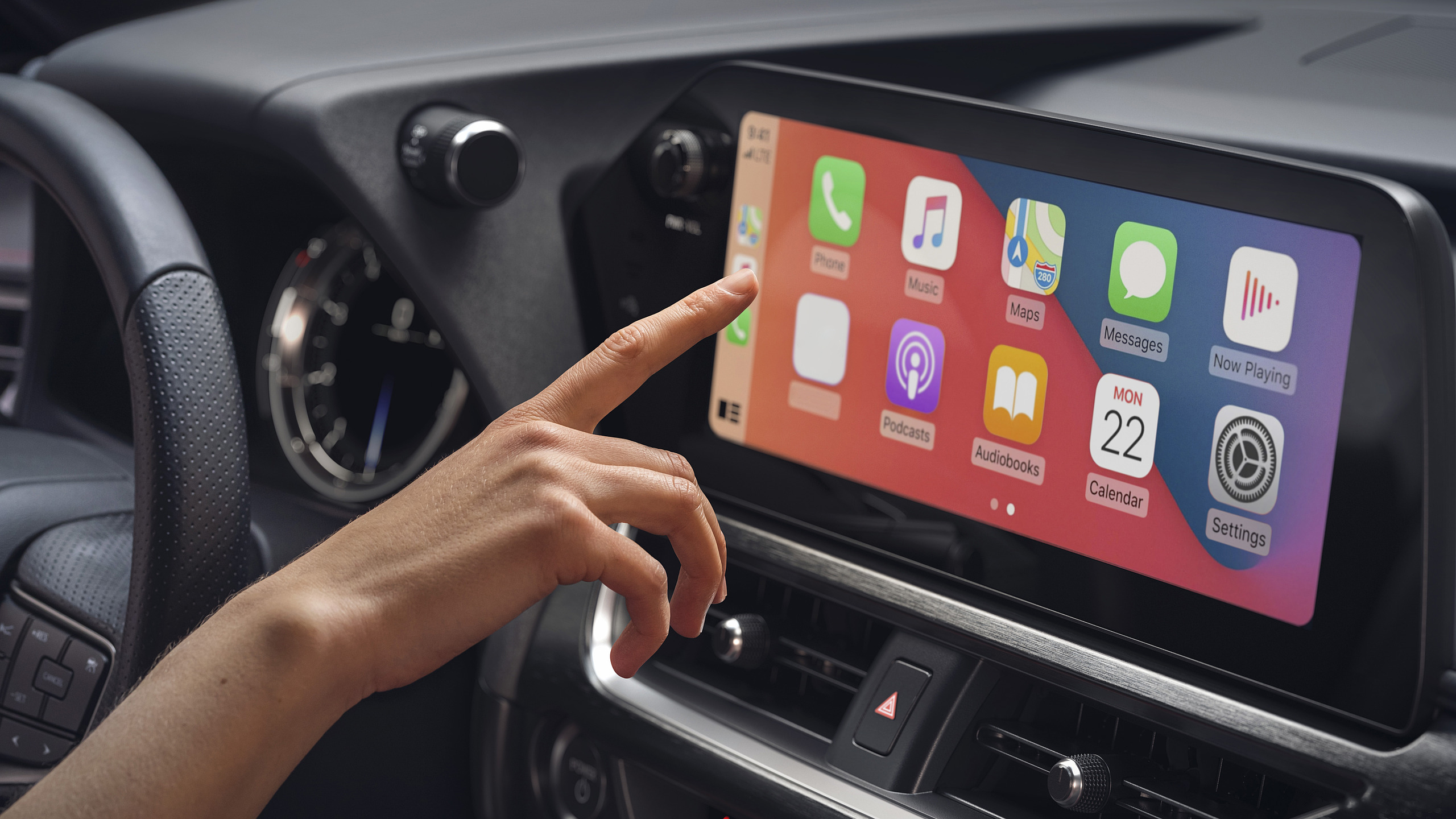
You can make your old car better with a wireless CarPlay retrofit. You will get all the new 2026 upgrades. Think about getting into your BMW. Your phone connects right away. You still have all the features you like. Wireless CarPlay makes driving easier and safer. You do not need cables or extra steps. Leadsign gives you a smart and simple way. This guide helps you use all the 2026 features in your car.
Key Takeaways
You can upgrade your BMW with wireless CarPlay. This lets you use new features without getting a new car. - You can pair your phone fast and use voice commands. These make driving safer and easier. - Check your BMW’s model and year first. Make sure it works with wireless CarPlay before you buy a kit. - You can install it by yourself or get help from a pro. This means anyone can do it, no matter their skill. - Pick a trusted brand like Leadsign for the kit. This helps it work well with your car’s features.
Wireless CarPlay Retrofit Overview
What Is a Wireless CarPlay Retrofit?
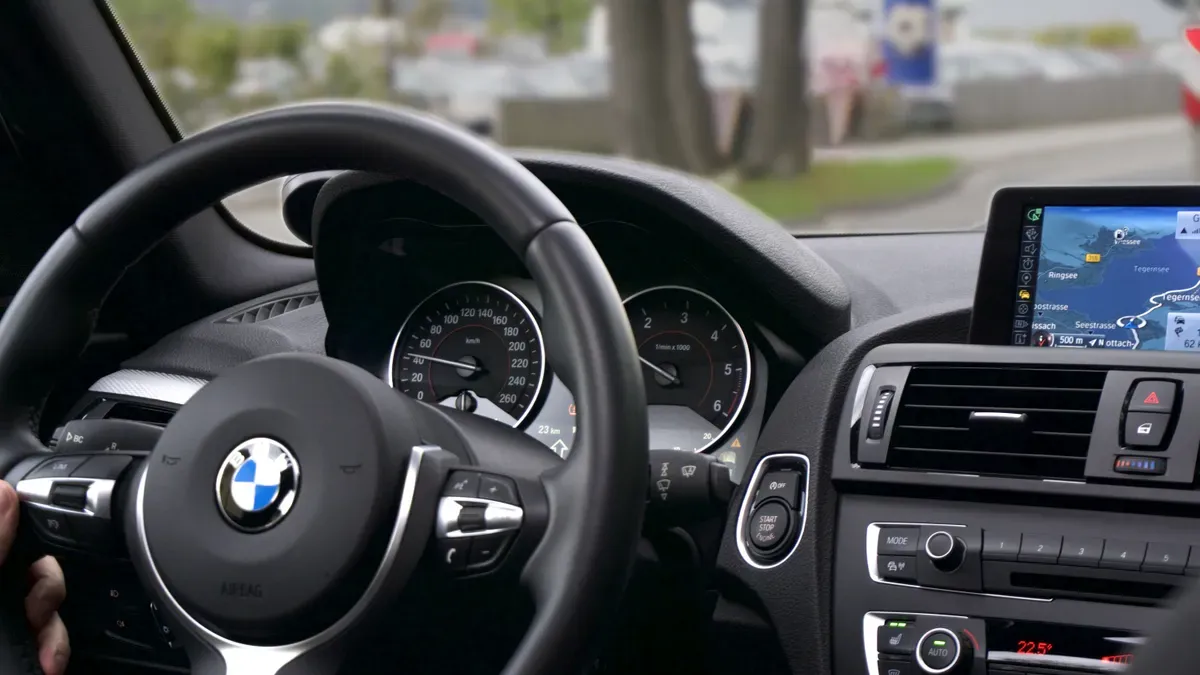
A wireless CarPlay retrofit gives your BMW a modern touch. You can add features that older models did not have. This upgrade uses a special module that connects to your car’s head unit and iDrive screen. You do not need to change how your dashboard looks. The system blends in with your original setup, so it feels like it came from the factory.
A wireless carplay retrofit lets you use Apple CarPlay in BMWs that did not come with it.
The module works with your car’s existing controls and screen.
You get a smooth experience without changing the look of your car.
Many retrofits, like BimmerTech’s MMI Prime, work with most BMWs made since 2008.
You just get in, and your phone connects. No cables. No fuss.
Benefits of Upgrading BMW Interface
When you add wireless CarPlay, you make your daily drive easier and safer. You can pair your phone instantly. The dashboard stays clean because you do not need wires. You can use voice commands to play music, get directions, or send messages. This keeps your hands on the wheel and your eyes on the road.
Instant smartphone pairing saves you time every day.
A wire-free dashboard keeps your car looking neat.
Voice-first control helps you stay focused while driving.
A wireless carplay retrofit also boosts your car’s value. Many buyers look for modern tech and safety features. When you upgrade your BMW with wireless carplay, you make it more attractive if you ever want to sell it.
Tip: A wireless carplay retrofit is a smart way to enjoy the latest tech without buying a new car.
BMW Compatibility & Eligibility
Supported BMW Models and Years
You might wonder if your BMW can get a wireless CarPlay upgrade. Many BMWs from recent years support this feature. Here’s a quick look at which models and years work with most retrofit kits:
BMW Model | Production Year |
|---|---|
2 Series | 2017+ |
3 Series | 2017+ |
4 Series | 2017+ |
5 Series | 2017+ |
6 Series | 2017+ |
7 Series | 2017+ |
8 Series | 2018+ |
X1 | 2018+ |
X2 | 2018+ |
X3 | 2017+ |
X4 | 2017+ |
X5 | 2017+ |
X6 | 2017+ |
X7 | 2018+ |
Z4 | 2019+ |
i3 | 2018+ |
i4 | 2022+ |
i5 | 2024+ |
i7 | 2023+ |
iX | 2022+ |
i8 | 2019+ |
M3 | 2018+ |
M4 | 2018+ |
M5 | 2018+ |
M8 | 2020+ |
If your BMW falls within these years, you’re in luck! You can enjoy the latest carplay features without buying a new car.
How to Check Your System
Not sure if your BMW is ready for a wireless carplay retrofit? You can check in just a few steps:
Start your car.
Plug your phone into the car’s USB port using a good cable.
Watch your infotainment screen. If carplay or Android Auto pops up, your system is compatible.
Tip: If nothing shows up, your car may need an upgraded head unit or a special retrofit kit. Don’t worry—solutions like Leadsign can help you get connected.
Checking your system takes only a minute. You’ll know right away if you can upgrade and enjoy a smarter drive.
How to Add Apple CarPlay to BMW
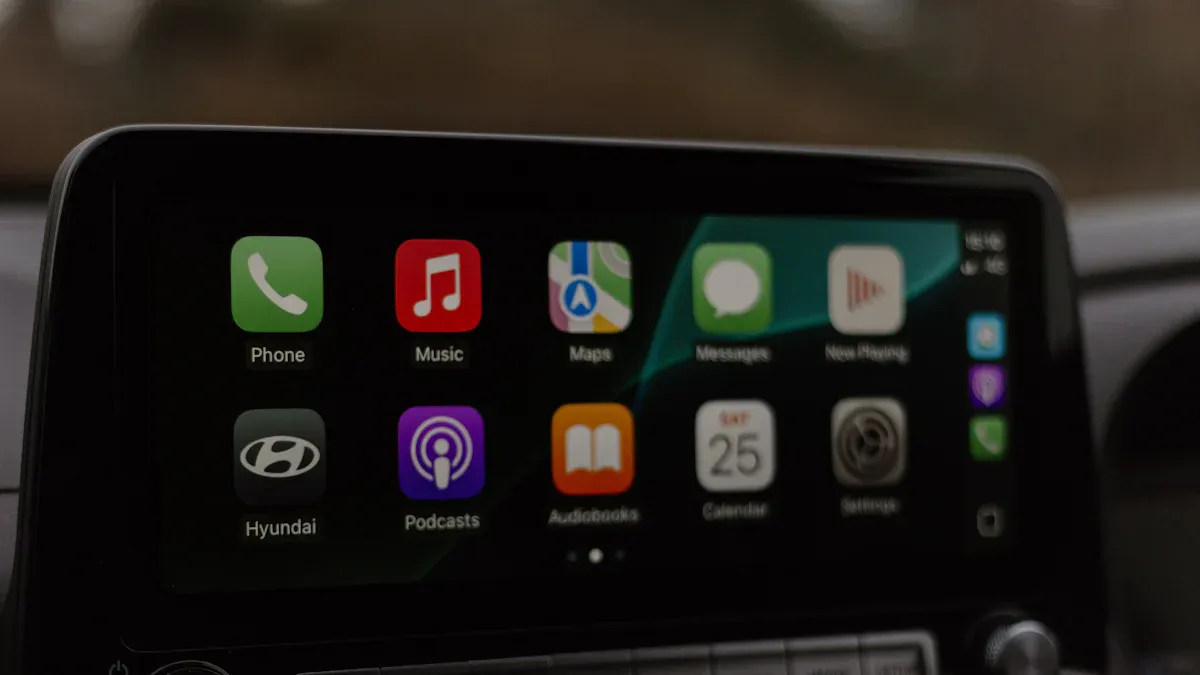
Upgrading your BMW with a wireless carplay retrofit is easier than you might think. You can add apple carplay to your car and enjoy a modern driving experience. This guide will walk you through the tools, steps, and tips you need for a smooth installation.
Tools and Parts Needed
Before you start, gather the right tools and parts. Having everything ready makes the installation go faster and helps you avoid mistakes. Here’s a quick look at what you need:
Kit Contents | |
|---|---|
Torx T20 screwdriver | CarPlay/Android Auto main module |
Plastic trim removal tool | Wi-Fi antenna |
Clean towel or soft pad | Power harness (Quadlock) |
AUX cable | |
USB cable | |
LVDS (video) cables – pink and turquoise |
Most wireless carplay retrofit kits, like Leadsign, come with all the main parts you need. You just need to bring the basic tools and a little patience.
Step-by-Step Installation Guide
You have two main ways to add apple carplay to your BMW: do it yourself or let a pro handle it. Both options work well, but your choice depends on your comfort level and time.
Steps | DIY-Friendly? | |
|---|---|---|
Head Unit Replacement | 1. Remove the factory stereo. | Yes |
Wireless Adapter | 1. Insert the adapter into your CarPlay USB port. | Yes |
OEM Integration Kit | Requires professional or semi-advanced install with a car-specific integration module. | Pro preferred |
If you want a quick upgrade, a wireless adapter like Leadsign is a great choice. You just plug it into your car’s USB-A or USB-C port, pair your phone, and you’re ready to go. Some adapters even support split screen and over-the-air (OTA) updates, so you always get the latest features.
For a more advanced setup, you can use an integration kit. This option keeps your car looking original and works with your factory controls. Many people choose professional installation for this method, but if you like DIY projects, you can follow the guide step by step. Most installations take about an hour if you do it yourself. A professional might need one to two hours.
Tip: Always follow the installation guide that comes with your kit. Each BMW model is a little different, so the steps may change.
Preserving Factory Features
You want to add apple carplay to your BMW, but you also want to keep all your favorite features. Here’s how you can make sure everything works as it should:
Confirm your BMW’s model and production year before you buy a wireless carplay retrofit.
Check that the kit works with your current system, including things like your reversing camera and parking sensors.
Give your supplier clear details about your car. Photos of your factory interface and infotainment menu help a lot.
When you use a trusted brand like Leadsign, you keep your original controls, sound quality, and display. The integration feels seamless, so you get the best of both worlds—modern carplay features and your BMW’s classic feel.
Note: Taking these steps helps you avoid problems and makes your upgrade smooth and stress-free.
Now you know how to add apple carplay to your BMW. With the right tools, a good wireless adapter, and a careful installation, you can enjoy wireless carplay every time you drive.
Wireless CarPlay Retrofit Options & Cost
Leadsign Interface Features
If you want a wireless CarPlay upgrade, you want it to be simple. Leadsign makes this easy for everyone. You do not need to change any wires or do coding. The kit has everything you need to get started:
LVDS video cable gives a clear picture on your screen
Wi-Fi antenna helps you get strong wireless signals (keep it away from metal)
AV/USB cable powers your backup camera
CAN cable makes power hookup easy
iDrive cable comes with both 4-pin and 10-pin connectors
Aftermarket microphone is included if your BMW does not have one
You use the AUX-IN port for audio. This makes your music and calls sound good on your car’s speakers. The kit keeps your BMW looking the same but adds new features.
Comparing Retrofit Kits
There are different choices for carplay units and adapters. Leadsign is easy to set up and has many features. Other brands, like Dylect AirDrive, also give you wireless carplay. You should check if they work with your BMW’s system. Here are things most BMW owners care about:
Factor | Why It Matters |
|---|---|
Compatibility | Makes sure the kit works with your iDrive system |
Integration | Keeps your car’s original look and controls |
Functionality | Lets you use carplay and Android Auto wirelessly |
Cost | Helps you stay within your budget |
Leadsign works well with your car and keeps all your features. The upgrade feels smooth and looks like it came with your car.
Note: Using a plug-and-play carplay kit will not void your warranty if it does not cause problems.
Price Breakdown
You may wonder how much a wireless carplay upgrade costs. Here is a simple guide:
Vehicle Type | Price Range |
|---|---|
Basic vehicles | |
Mid-range installs | $400 – $700 |
Luxury or complex vehicles | $800 – $1,200+ |
The price depends on your BMW’s model, the kit type, and how hard it is to install. Wireless kits cost more than wired ones, but they are easier to use. Leadsign gives you a warranty and support, so you can upgrade without worry.
Troubleshooting Wireless CarPlay
Common Installation Issues
You might run into a few bumps when setting up your wireless carplay. Here are some of the most common issues BMW owners face:
Bluetooth connectivity problems can pop up if your phone or car settings are not right. Always double-check both before you start.
Compatibility matters. Make sure your retrofit kit matches your BMW model and year.
Loose wiring can cause trouble. Secure all connections during installation.
Sometimes, a damaged or wrong USB cable can stop carplay from working.
Interference from other Bluetooth devices may block a smooth connection.
Outdated software on your iPhone or BMW can also get in the way.
Tip: Before you begin, check that your BMW supports carplay and that your phone and car software are up to date.
Connectivity Tips
If your wireless carplay does not connect, try these steps to get back on track:
Reset Bluetooth and Wi-Fi on your iPhone. Turn them off, then back on.
In your BMW’s iDrive, reset the connection settings.
Make sure carplay is enabled on both your iPhone and the iDrive system.
Forget the BMW on your iPhone and remove your phone from the car’s device list. Then, pair them again.
Restart both your iPhone and your BMW’s infotainment system.
These steps often fix most connection problems. If you still have trouble, check your cables and settings one more time.
Achieving OEM Experience
You want your retrofit to feel just like the original BMW system. Here’s a quick guide to help you get that factory look and feel:
Write down your car’s audio setup and iDrive firmware before you start.
Plan any upgrades, like speakers or amplifiers, to match your car’s system.
Focus on seamless integration. Keep all your warning chimes, parking tones, and call quality.
Test everything after installation. Make sure all features work as they should.
If you hear odd sounds or lose features, check your connections and settings.
Note: Careful setup and testing help you enjoy a smooth carplay experience that feels like it came with your BMW.
Getting a wireless CarPlay retrofit kit for your BMW is a good idea. It lets your phone connect easily. You can use new apps on your car’s screen. Driving becomes safer and more fun. Your car still looks the same as before. Before buying, check your BMW’s model and year. Make sure CarPlay works with your car. Check if your iPhone fits the rules. Leadsign helps you upgrade without trouble. Look at their products or ask them for help. You will have a smarter drive every day!
FAQ
How do I know if my car supports wireless CarPlay?
You can check your car’s infotainment screen. Plug your phone into the USB port. If CarPlay shows up, your car supports it. If not, you may need a retrofit kit.
Will installing a retrofit kit affect my car’s warranty?
Most retrofit kits are plug-and-play. They do not change your car’s wiring. If you follow the instructions, your car’s warranty stays safe. Always check with your dealer for peace of mind.
Can I use Android Auto in my car after the upgrade?
Yes, many retrofit kits let you use Android Auto. You can switch between CarPlay and Android Auto on your car’s screen. This makes your car more flexible for different phones.
What happens to my car’s original features after installing CarPlay?
You keep your car’s original controls, sound, and display. The retrofit kit works with your car’s system. You still use your steering wheel buttons and backup camera.
Do I need professional help to install CarPlay in my car?
You can install most kits yourself. If you feel unsure, you can ask a pro. The kit comes with instructions. Your car will be ready for wireless CarPlay in no time.
Tip: Always check your car’s model and year before buying a retrofit kit.
Question | Quick Answer |
|---|---|
Is my car compatible? | Check your infotainment screen |
Will warranty be affected? | Usually not, but ask your dealer |
Can I use Android Auto? | Yes, with most retrofit kits |
Will I lose features? | No, your car keeps its functions |
DIY or pro install? | Both options work for your car |