How to Upgrade Your 2017 Audi Q5 with Apple CarPlay

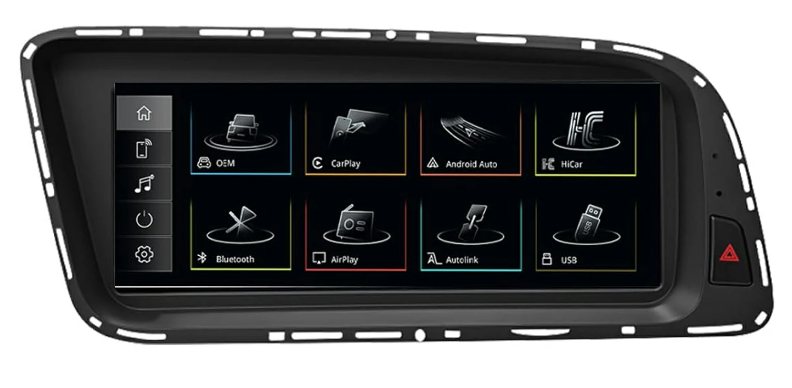
Yes, you can add Apple CarPlay to your 2017 Audi Q5. Audi has no official upgrade for this model year, so you need aftermarket parts. You have three real choices: an add-on module, a new touchscreen, or a full head unit swap. A plug-and-play module like the NAViKS NK-324 supports both wired and wireless CarPlay and Android Auto without cutting wires. These modules cost about $420 on average. The replacement screen option keeps your factory radio, amplifier, joystick, and backup camera. A full head unit swap costs the most and takes the most work. Your 2017 Audi Q5 Apple CarPlay upgrade starts with one key step: confirm your infotainment system version before you buy any parts.
Key Takeaways
Check your Audi Q5’s MMI system before buying any parts. Only the 3G MMI+ works with the popular touchscreen upgrades.
Choose a plug-and-play screen or add-on module for an easy upgrade. These options keep your factory radio, backup camera, and controls working.
Skip the full head unit swap. It costs thousands and needs a professional. A screen replacement gives you the same CarPlay features for less money and effort.
Install the new screen yourself with basic tools. The plug-and-play design uses your car's original cables, so you never cut or splice wires.
Connect your iPhone wirelessly or with a USB cable. The setup remembers your phone and pairs automatically each time you start the car.
Confirm Your Infotainment System First
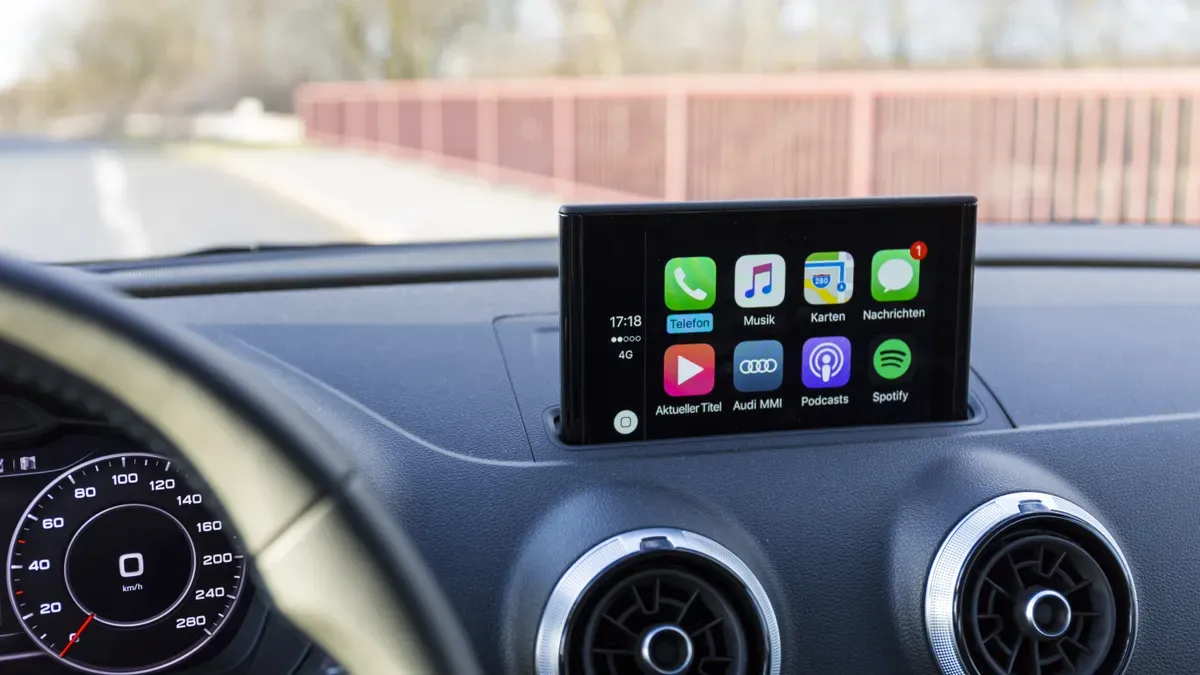
Your 2017 Audi Q5 can ship with different systems. Compatibility depends on which one you have inside your car. The 10.25″ touchscreen product only works with the 3G MMI+ system. It does not work with Audi Concert or Symphony systems. So you must check your setup before you buy anything.
MIB1 vs. MIB2 and 3G MMI+
Audi built two main system types for this generation. The MIB1 system has real limits that affect your upgrade options. These include:
Lower screen resolution
Limited smartphone integration
Most models do not include factory Apple CarPlay
These limits directly affect the quality of any aftermarket CarPlay installation. The base system just lacks enough processing power and native support. The MIB2 system handles upgrades much better. But your Q5 also uses a specific version called 3G MMI+. You need this version for the 10.25″ touchscreen to work. Checking your infotainment type first saves you from buying a part that won't connect at all.
How to Check Your Trim and MMI Version
Start with the easiest method. Turn on your car and open the main mmi menu. Look for a section called "Version" or "System Information." This screen shows the software version and hardware code. A code that starts with "MHI2" or "MH2" means you have a newer MIB2 system. Codes like "MHI1" or "MH1" point to MIB1.
Another method uses your vehicle settings menu. Go to the car settings and look for "MMI version" or "System version." Your owner's manual can help you find this option quickly.
You can also use your VIN number. Call your Audi dealer or run a VIN lookup online. They can tell you exactly which infotainment system your Q5 came with from the factory. The dealer can also confirm your trim and production date. Knowing these details helps you pick the correct mmi system for your upgrade.
Take five minutes to confirm your version now. This small step saves hours of frustration later. The right infotainment match means a smooth install and full CarPlay access the first time.
Your 2017 Audi Q5 Apple CarPlay Upgrade Options
Audi does not have any official software or hardware upgrade for 2013–2017 Q5 models. That means you must use aftermarket parts to get Apple CarPlay. Your choice depends on what you want: a simple screen swap, an add-on module, or a full system replacement. Let’s look at each option so you can choose the right one for your car and budget.
Aftermarket Modules and Plug-and-Play Screens
The most common way to get a 2017 audi q5 apple carplay upgrade is a plug-and-play screen replacement. The 10.25-inch Linux touchscreen is a good example. It shows an HD picture that makes maps and media look clear and bright. It includes built-in wired and wireless apple carplay® and Android Auto. You get these features without losing your factory radio, amplifier, joystick, or original backup camera. The Linux system stays steady and does not freeze, even on long drives. Installation is easy. You just connect it to your existing cables. No cutting or breaking wires needed. The package comes with the screen and all needed cables. If you have trouble, support is available to help.
Another good option is the DIZZPLAY 10.25-inch screen from ZZ2. Here is a quick list of what it offers:
Attribute | Details |
|---|---|
Product Name | 10.25" DIZZPLAY for AUDI Q5 (8R) |
Brand | ZZ2 |
Compatible System | 3G MMI System |
Compatible Years | 2008–2017 |
Key Features | Wireless Apple CarPlay & Android Auto; 10.25" HD touchscreen; OEM retention (radio, Bluetooth, mic, amp, steering wheel controls, rear camera); Plug-and-play install; zOS Linux fast boot; 3-year warranty |
Price | $949.00 |
This screen also keeps your factory features working. Both the 10.25-inch and 10.25-inch choices work with your current infotainment setup. You just need to be sure you have the 3G MMI+ system first. They plug directly into your original car cables.
Some add-on modules connect to your existing system without replacing the factory screen. These boxes are placed behind your dashboard and add CarPlay to your standard audi display. They cost less than a full screen replacement but still give you wireless carplay and hands-free access to your iPhone apps. You keep your original screen and controls. This option is good if you want to keep the stock look while adding modern smartphone features. Either way, you get a modern interface that works with your factory parts.
OEM Retrofit and Full Head Unit Swaps
On the other end, you have full head unit swaps. This means you remove your entire infotainment systems and put in a completely new one. It is the most expensive and hardest option. You pay more for the parts and likely need a professional to install it. The cost can easily be thousands of dollars. You might also lose connections with your factory systems like the joystick, backup camera, or amplifier. For most owners looking for a 2017 audi q5 apple carplay upgrade, this step is too much. A plug-and-play screen or module gives you the same Apple CarPlay features at a much lower cost and with less work. You get all the benefits without the trouble of a full system removal. Stick with the practical aftermarket options, and you will save time, money, and frustration.
Step-by-Step Installation Guide
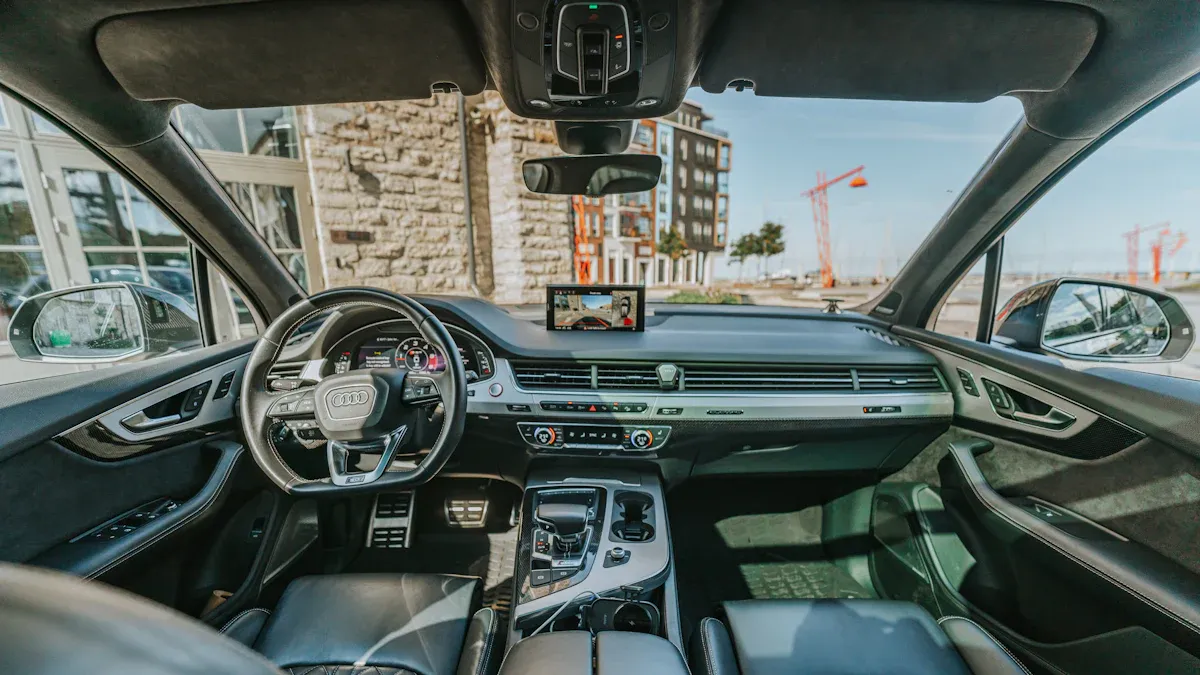
You do not need a mechanic for this job. A plug-and-play screen or module installs with basic hand tools in your own garage. Follow these steps in order, and take your time.
Installing a Plug-and-Play Screen or Module
Turn off the ignition and remove the key from the car.
Disconnect the negative terminal on your battery. This protects the electronics while you work.
Remove the screws that hold the factory screen or trim in place.
Pull the unit forward and unplug the factory connectors behind it.
Connect the new screen or module using the original car cables.
That last step is the best part. The plug-and-play design uses your car's original cables, so you never cut or break a single wire. The package includes the screen and every cable you need. If a question pops up during the install, dedicated support is available to help you through it. You keep your factory radio, amplifier, joystick, and reversing camera working the whole time.
Connecting Your iPhone: Wired vs. Wireless
Once the hardware is in, connecting your iphone takes about a minute. For wireless connection, start on your phone. Open phone settings, then go to Settings > General > CarPlay. Your vehicle name appears in the list. Tap it to begin pairing. The system uses bluetooth and wi-fi together for the wireless handshake, so turn both on before you start. Accept the carplay prompts on your screen, and the carplay icon shows up when the link is live.
Prefer a cable? Plug your iphone into the usb port with a usb cable. Wired CarPlay starts on its own, and your phone charges while you drive. Either way, the setup remembers your device. Next time you start the car, the pairing happens automatically over wi-fi and bluetooth.
Android Auto works the same way for non-iPhone users. Open the Android Auto app, pair over bluetooth, or connect through usb. The screen handles both systems without any extra parts.
A few quick tips make the first connection smoother. Keep your phone unlocked during the initial pairing. Stay within a few feet of the dash until the wireless handshake finishes. If the car does not see your phone, forget the vehicle in your phone settings and run the pairing again. The whole process is simple, and you will be streaming music and using maps in minutes.
Cost, Difficulty, and Troubleshooting
Comparing Cost and DIY Difficulty
The three upgrade paths come with different price tags and skill needs. An add-on module costs the least. You tuck the box behind your dashboard and connect it to your existing setup. A screen replacement costs more but keeps you in the DIY lane. The 10.25-inch Linux touchscreen connects to your original cables with no wire cutting. A full head unit swap sits at the top of both the price chart and the difficulty scale. You need professional help for that job. Here is a quick look at the options.
Option | Cost Range | DIY Difficulty |
|---|---|---|
Add-on module | Around $420 | Easy |
Screen replacement | $949 and up | Moderate |
Full head unit swap | Thousands of dollars | Hard |
Common Issues and Fixes
Even plug-and-play upgrades can trip you up.
No CarPlay detected — Start by checking your cable connections behind the dash. One loose connector can break the signal. Then confirm your infotainment version matches the product. The 10.25-inch Linux screen only works with the 3G MMI+ system.
Wireless pairing failures — This is the most common headache. The initial pairing requires both bluetooth and wi-fi. If the connection fails, head to your phone settings. Delete old bluetooth or wi-fi connection entries that may confuse the system. Also delete outdated bluetooth or wi-fi pairings saved from previous devices. On your iPhone, go into your wi-fi networks and delete audi mmi_xxxx_5ghz and delete audi_mmi_xxxx if those names appear. Then restart your phone. Try the pairing process again. If it still fails, perform a full reset by disconnecting the battery for a few minutes. Make sure bluetooth is on during the whole process. The system needs a stable bluetooth link. Enable bluetooth in your phone settings before you start. Check for phone software updates. An outdated iOS version can block a fresh pairing. Turn wi-fi on before you begin.
Screen not powering on — Double check that you reconnected the battery terminal. A forgotten ground wire or a blown fuse can also cause this.
Factory camera or joystick not working — These features stay active only if the cable harness snaps in all the way. Unplug and reseat every connector.
Your budget and your taste decide the best path. Tight on cash and handy with tools? Grab an add-on module. Want a factory-clean look with a modern touchscreen? The 10.25-inch Linux screen keeps your radio, joystick, and backup camera working. Either way, your 2017 audi q5 apple carplay upgrade starts with one smart move: confirm your MMI version before you buy anything. That single check saves you from ordering the wrong part.
Once CarPlay runs in your Q5, you get maps, calls, and music on a screen that feels current. The car stays useful for years. It also holds its value better when you sell it.
FAQ
Will I lose my factory backup camera or joystick?
No. The plug-and-play screen keeps your factory radio, amplifier, joystick, and original reversing camera working. You just reseat the existing cable harness during install. Everything stays functional.
How does wireless CarPlay pairing work?
Open your iPhone settings. Go to General then CarPlay. Select your vehicle. The system uses bluetooth and wi-fi together. Keep bluetooth turned on. Enable bluetooth before starting. Accept the pairing prompt on screen. That's it.
Do I need to update the firmware?
Sometimes. Check for phone software updates on your device. Then clear old bluetooth connections in your settings. Delete any outdated wi-fi networks. Restart your car and phone. The pairing should work after that.
Can I still use Android Auto?
Yes. The same plug-and-play screen supports both Apple CarPlay and Android Auto. Android Auto works the same way. Pair wirelessly or connect through USB. No extra parts needed.
What if my Q5 does not have the 3G MMI+ system?
For a 2017 audi q5 apple carplay upgrade without 3G MMI+, try an add-on module. Those boxes connect to your factory screen via bluetooth. They work with Concert and Symphony systems.
See Also
Installing Apple CarPlay And Android Auto On Audi A4 2013-2016 Screen
Upgrading Your Audi Q5 Screen Using A Plug-And-Play Kit
Leadsign Audi MMI 2G CarPlay Retrofit For A5 2009-2015
Leadsign Always Provides The Best Audi A4 B8 CarPlay Upgrade