Audi MMI 2G CarPlay Retrofit for A5 2009-2015 | Leadsign

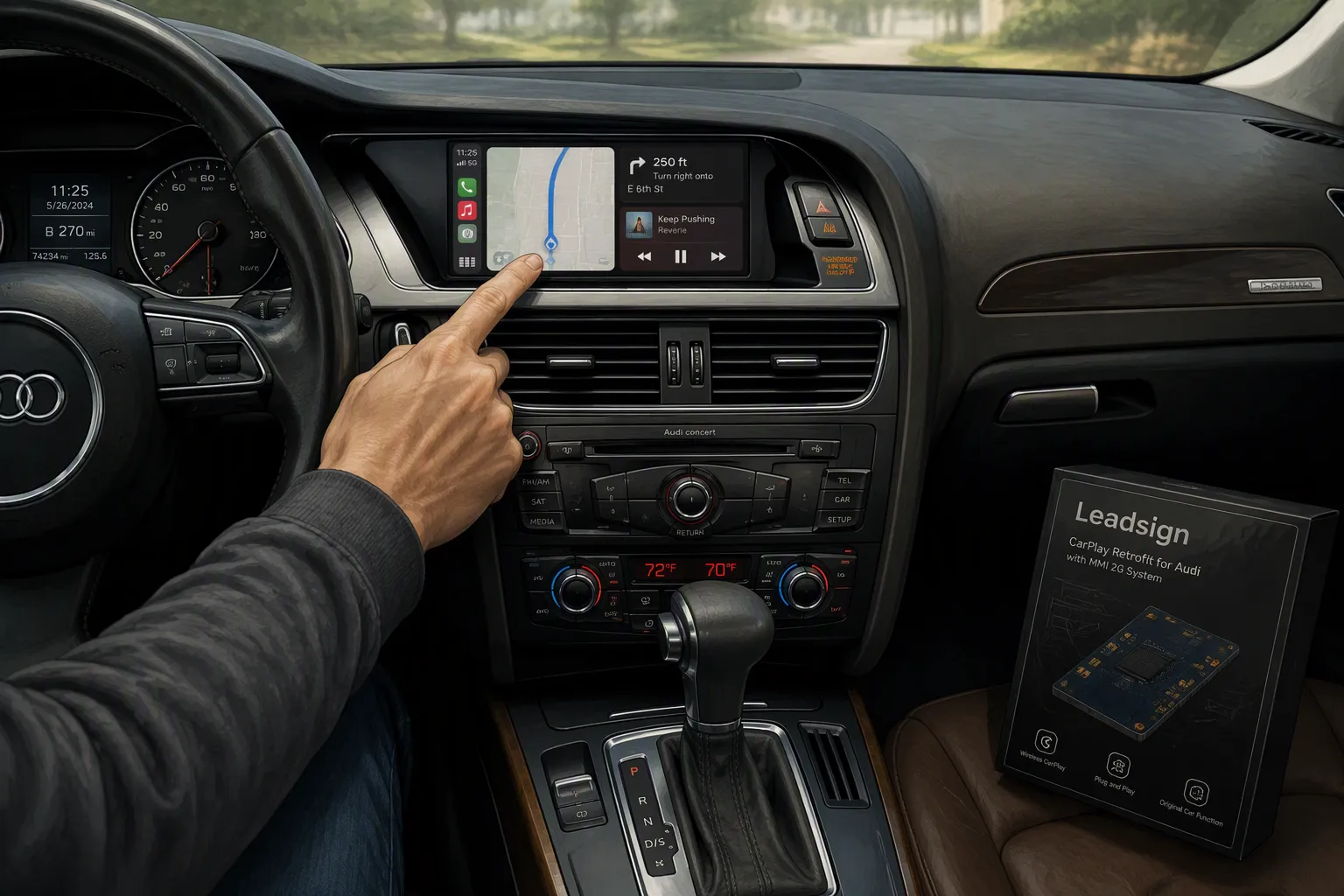
Yes, you can add Audi MMI 2G CarPlay to your Audi A5 2009-2015 with MMI 2G System. The Leadsign 8.9″ Linux touchscreen makes it happen. This is not a software update. Your Audi MMI 2G simply does not support Apple CarPlay on its own. You replace the factory screen instead.
The kit keeps your factory controls, amplifier, and reversing camera. It adds wireless CarPlay and Android Auto. The installation is plug-and-play, so you do not cut any cables. Whether you are a DIY installer or a car enthusiast, this upgrade is friendly and straightforward. You get modern connectivity—including Audi MMI 2G CarPlay—without losing what your Audi already does well.
Key Takeaways
Make your Audi A5 (2009-2015) with MMI 2G better by adding wireless CarPlay and Android Auto. You can do this with an 8.9-inch Linux touchscreen that is plug-and-play.
First, check your MMI version. Only MMI 2G High with Concert or Symphony systems are compatible.
You can install the new screen without cutting any wires, and it keeps the factory radio, amplifier, joystick, and reversing camera.
Use CarPlay's voice and touch controls to reach navigation, music, and calls faster and safer.
Fix common problems easily and switch between MMI and CarPlay with just a tap.
What Is the Leadsign Audi MMI 2G CarPlay Screen
This unit is a full 8.9-inch Linux touchscreen that replaces your old screen. It is not just a module that works with your factory display. You take out the old screen and put this new one in its place. The result is a modern, quick display that brings wireless Apple CarPlay and Android Auto to your Audi A5.
Key Features of the 8.9″ Linux Touchscreen
The screen uses a steady Linux operating system. This means you get smooth performance even on long drives. The 1920x720 HD resolution gives you clear, bright visuals for every map, message, and menu. You can link your phone wirelessly or with a USB cable. Siri and touch both work smoothly.
Here is a quick look at the main specifications:
Specification | Detail |
|---|---|
Screen Size | 8.9 inches |
Resolution | 1920x720 HD |
Operating System | Linux |
Compatibility | Audi A5 (2009-2015) with MMI 2G system, Concert or Symphony only |
CarPlay & Android Auto | Built-in wired and wireless, supports Siri and touch interaction |
Original Functions | Retains original radio, amplifier, joystick control, rearview camera |
Installation | Plug-and-play, no cutting of cables |
Additional Features | Supports Aux, Bluetooth sound modes, Navigation, Maps App, Reverse Camera, DVR |
You also get mirror link, USB media playback, and DVR compatibility. The system keeps your original car radio, amplifier, factory joystick control, and reversing camera. No software changes are made to your vehicle's control units.
What Comes in the Box
The package has the 8.9-inch touchscreen and all the cables you need. You also get the original car cable for a plug-and-play setup. This means you do not cut or break any wires during installation. The kit works with both original and aftermarket rearview cameras.
Everything you need for the audi mmi 2g carplay upgrade is in the box. The connection process is simple. You plug the cables into your factory harness and the new screen turns on. If you have any issues, the Leadsign support team is ready to help.
Compatibility Check for Your Audi A5
Before you order anything, you need to confirm one thing. Does your car have the MMI 2G system? This step matters more than any other. The Leadsign screen only works with MMI 2G. It does not work with other Audi infotainment systems.
Confirming MMI 2G, Concert, or Symphony
You can check your system version right from the driver's seat. Here is the menu path:
Press the "Setup" or "Menu" button on your MMI control panel.
Navigate to "Settings".
Scroll down and select "Version Information".
The version screen tells you which system you have. You want to see MMI 2G listed there. This unit fits Audi Concert or Audi Symphony only. It does not fit Audi Multimedia. If your car has MMI 2G Basic or Low with a red and black info display, this kit will not work for you. The retrofit needs the MMI 2G High system.
This is the most important check for your audi mmi 2g carplay upgrade. Get it wrong, and the screen will not connect. Get it right, and you are ready for a smooth installation.
Models and Years That Fit
The Leadsign 8.9″ Linux touchscreen fits the Audi A5 from 2009 to 2015. Other models and other MMI versions are not supported. Here is the full list of compatible vehicles:
Audi Model | Chassis Code | Year Range |
|---|---|---|
A4 | 8K | 2008 - 2009 |
A5 | 8T | 2007 - 2009 |
If your Audi falls outside these ranges, this kit is not for you. The hardware and software are built for these specific systems. No universal adapter exists here.
One more thing worth knowing: this upgrade makes no software changes or coding to your vehicle's control units. You do not need a dealer visit. You do not need special tools to reprogram anything. The new screen talks to your factory system through the original car cable. Your car's brain stays untouched.
That is good news for anyone worried about warranty or resale value. The audi mmi system keeps working exactly as before. You simply gain a new display layer on top of it. The factory radio, amplifier, and joystick control all stay in place.
So take two minutes to run that version check. Look at your model year. Confirm you have MMI 2G High. Once you clear this step, the rest of the process is straightforward. You will know for sure that wireless CarPlay and Android Auto can come to your Audi A5.
Step-by-Step CarPlay Installation Guide
You do not need a mechanic for this job. The installation process uses the original car cable. That means no cutting and no breaking wires. You unplug the old screen and plug in the new one. The whole job takes patience and a few basic tools.
Removing the Factory Screen and Trim
Start by parking your Audi on a flat surface. Turn off the engine and pocket the key. Safety comes first when you work near power connectors.
Follow these steps to disconnect the original car cable safely:
Disconnect the negative terminal of the car battery before touching any cables. This avoids short circuits while you work with the power connectors.
Locate the back of the factory head unit and unplug the Quadlock power connector.
Unplug the LVDS video plug from the back of the head unit.
Pull both connectors straight out when you remove them. Do not twist or bend the pins.
Keep the car battery disconnected before you unplug any power cable.
Next, remove the trim around the factory screen. Work slowly with a plastic pry tool. The clips hold tight, so gentle pressure wins here. Set the screws and trim pieces in a safe spot. You will not reuse the old screen, but you may want the hardware later.
Connecting the New Screen and Testing CarPlay
Now comes the easy part. The connection is truly plug-and-play. Take the 8.9-inch Linux touchscreen and plug it into the original car cable. Route the cables behind the dash so they sit clean and out of the way. Push the new screen into the dash opening until it clicks into place.
Reconnect the negative battery terminal. Turn on your Audi and watch the screen boot up. Pair your phone to test wireless Apple CarPlay. You can also plug in a USB cable for wired Apple CarPlay. Open a map, play a song, and ask Siri a question. If everything works, you are done.
This installation retains your original car radio, amplifier, factory joystick control, and original reversing camera. Nothing gets lost in the upgrade. Your steering wheel buttons keep working too. The audi mmi 2g carplay upgrade simply adds a modern layer on top of your factory system.
The installation process stays friendly even if something goes wrong. Maybe the screen shows no signal. Maybe a cable feels loose. Do not panic. The Leadsign support team is ready to assist you. Reach out with your questions, and they will walk you through the fix.
Take your time on each step. Check every connection twice before you close the dash. A careful installation gives you years of smooth CarPlay performance in your Audi A5.
Troubleshooting Common CarPlay Issues
Setting up your new screen usually goes smoothly. But sometimes you run into a small problem. A blank screen, no sound, or controls that do not respond. That is normal with any aftermarket upgrade. Here is how to fix the most common issues.
No Signal, Blank Screen, or Audio Problems
If the screen stays black after you turn on the car, start with the basics. Check that you plugged the original car cable all the way into the back of the new screen. A loose connection is the most common cause. Also make sure you reconnected the negative battery terminal after installation. Without that, the screen gets no power.
Does the screen light up but show "No Signal"? That usually means the new screen is not receiving the video feed from your Audi's MMI system. Try pressing the menu button on the screen for a few seconds. This forces the unit to re-sync with your factory system. If that does not work, unplug the screen and plug it back in.
Audio problems are different. Your new screen sends sound through the factory amplifier. If you hear nothing, check your Audi's audio source. Select the AUX input on your factory MMI. The CarPlay audio routes through that channel. You can also adjust the volume on the new screen itself. Some users find the volume is turned all the way down by default.
Unresponsive controls happen when the screen is stuck in the wrong mode. Try a simple reboot. Hold the power button on the screen for ten seconds. The Linux system restarts and usually fixes the issue. If your factory joystick does not work, make sure you are in the MMI screen, not in CarPlay. The joystick only controls the factory interface.
Switching Between MMI and CarPlay
Your new screen gives you two separate systems. You have the factory Audi MMI interface and the Apple CarPlay interface. Switching between them is easy.
Look at the top of the screen. You will see a small icon that looks like a car or a menu button. Tap that icon to return to the factory MMI screen. To go back to CarPlay, tap the CarPlay icon. You can also use a short press on the physical menu button on the screen itself. This toggles between the two modes instantly.
Why would you need to switch? Sometimes you want to adjust a factory setting like the equalizer or the reversing camera delay. The CarPlay interface does not change those settings. Your factory controls remain fully available in MMI mode.
If your screen does not switch properly, check for firmware updates. The Linux system can be updated via a USB flash drive. Visit the Leadsign support page and download the latest firmware for your model. New updates often fix compatibility with the latest iOS versions. Keep your unit updated to avoid future issues.
A quick note about the built-in microphone. The kit includes a small microphone for hands-free calling and Siri. If you find your voice sounds quiet or echoed, you have an extra step. Route the microphone wire up to the area near your sun visor or around the driver's side A-pillar. This gives you clear audio during calls.
Most issues have a simple fix. If you still have trouble after these steps, reach out to Leadsign support. They can walk you through the solution.
Benefits of Upgrading to Apple CarPlay
Enhanced Navigation, Music, and Hands-Free Calling
You get real safety gains when you switch to Apple CarPlay. Studies show CarPlay was 24% faster for making calls and 31% faster for entering navigation than built-in systems. That saved time matters. Drivers who look away from the road for more than 2 seconds double their crash risk. CarPlay cuts that time a lot.
CarPlay saved 5 seconds per call and 15 seconds per navigation entry on average.
CarPlay created moderate demand, while native systems caused very high demand.
CarPlay lowered visual and mental demand for both voice and touch interactions.
You can run Apple Maps, Google Maps, or Waze through your new screen. These apps update in real time. You get live traffic, speed camera alerts, and lane guidance. Your music, podcasts, and audiobooks all play through your Audi's factory amplifier. Siri handles calls, texts, and requests without you touching your phone.
Why Choose the Leadsign Linux Screen
The Linux operating system gives this kit a real edge. Linux starts up faster than Android-based units. It uses less power and makes less heat. The system stays simple because it only runs key code. You get a stable, freeze-free experience even on long drives.
Advantage | What It Means for You |
|---|---|
Faster boot times | Key functions start before a full boot completes |
Lower power consumption | Less strain on your Audi's electrical system |
Reduced software bloat | Resources go to performance, not background tasks |
Ease of updates | Firmware updates fix bugs and add features |
The Leadsign kit stands out for other reasons too. The installation is plug-and-play with no coding required. It supports both original and aftermarket rearview cameras. DVR compatibility lets you add a dash camera later. Your factory radio, amplifier, and joystick control all stay working.
This upgrade makes your Audi smarter and safer. You keep the link to your factory systems while gaining modern features. Every drive becomes more fun when your apps, maps, and music work the way you expect.
The Leadsign 8.9″ Linux touchscreen brings wireless carplay and Android Auto to your Audi A5 2009-2015. This Audi MMI 2G CarPlay retrofit adds modern features while keeping your Audi factory controls and amplifier. You get a sharper 1920x720 HD display and stable Linux performance. With Apple CarPlay, you can use maps, music, and calls right on the screen. Setup is plug-and-play, so you do not need to cut wires or code anything. Just check that your Audi has the MMI 2G system before you buy. If you need help after setup, contact Leadsign support at info@leadsign.info or call +86-755-23323415. They are there from 9 am to 5 pm. Ready to upgrade your Audi with Apple CarPlay? Buy the kit from Leadsign today and enjoy smooth connectivity on every drive.
FAQ
Will this work with my 2012 Audi A5?
Check your system first. Press the Menu button, go to Settings, then Version Information. You need to see MMI 2G High listed there. This kit fits Audi Concert or Audi Symphony only. It does not work with Audi Multimedia or MMI 3G systems.
Do I need to cut any wires during installation?
No. The installation uses the original car cable. You unplug the factory screen and plug in the new one. No cutting or breaking cables required. The connection stays clean and simple. Your factory radio, amplifier, and joystick control all keep working.
Can I still use my factory reversing camera?
Yes. The new screen retains your original reversing camera. It also supports aftermarket cameras if you want to upgrade later. The camera feed shows up on the 8.9-inch display. You get a clear view when you shift into reverse.
How do I switch between the factory MMI and CarPlay?
Tap the car icon at the top of the screen to return to factory MMI mode. Tap the CarPlay icon to go back. You can also press the physical menu button for a quick toggle. Both systems stay ready whenever you need them.
Does apple carplay work without plugging in my phone?
Yes. This kit supports wireless apple carplay. Your iPhone connects through Bluetooth and Wi-Fi automatically. You can also use a USB cable if you prefer wired carplay. Either way, you get maps, music, calls, and Siri on the big screen.
See Also
Upgrade Your BMW with Wireless CarPlay Retrofit Interface Solution
2026 Guide to Upgrading Your Audi A3 Screen with Leadsign
Enhance Your Car Display with Leadsign CarPlay Screen Upgrades
Complete Guide to Aftermarket CarPlay Interfaces for 2026
Replace Your Car Stereo Touch Display with Leadsign Screen Upgrade